We have put together a checklist here that you can use to check whether you can successfully enter YuLinc. In addition to the checklist, this overview also includes points that can cause problems in some cases (these are summarized at the end).
Entering a YuLinc test room
You are welcome to use our YuLinc test room. Here you can try out your audio and video functions and meet colleagues for a sound check:

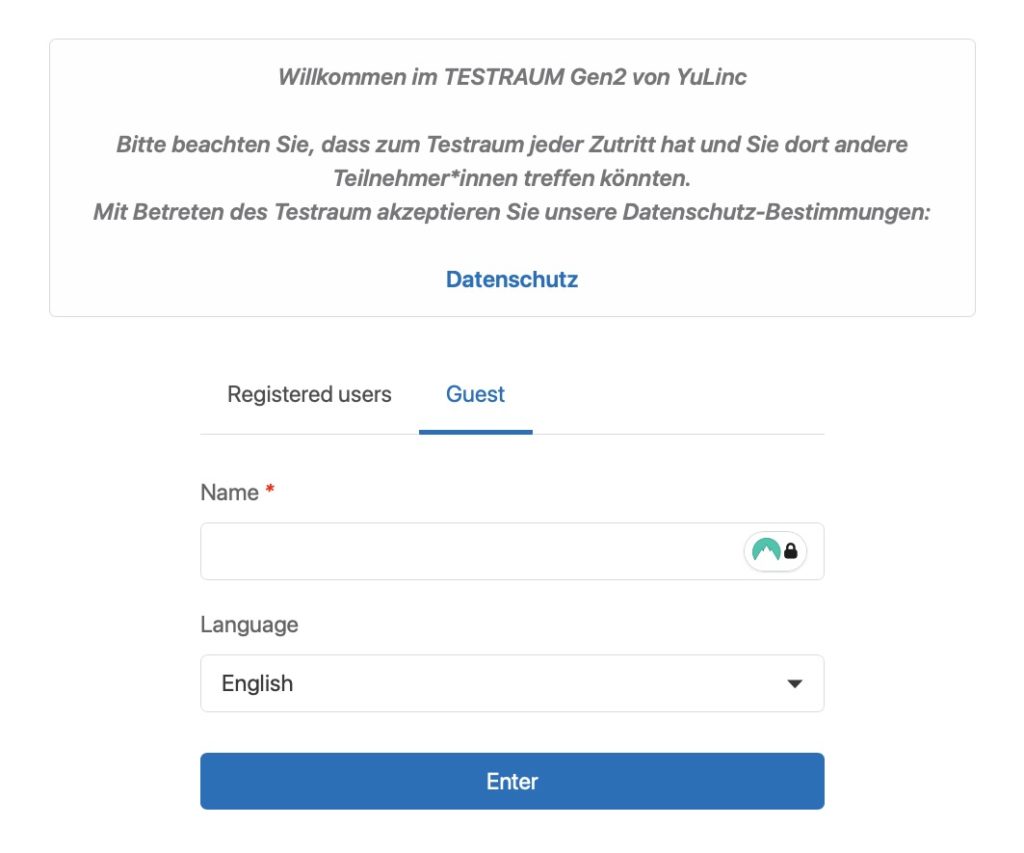
When entering the Gen2 test room, first enter your name:
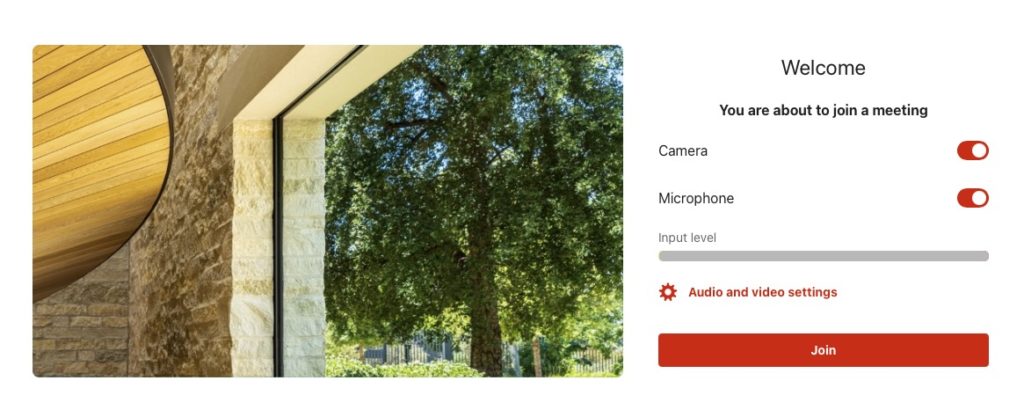
After clicking “Join session” and setting your audio and video, you can test your microphone and webcam:
Audio:
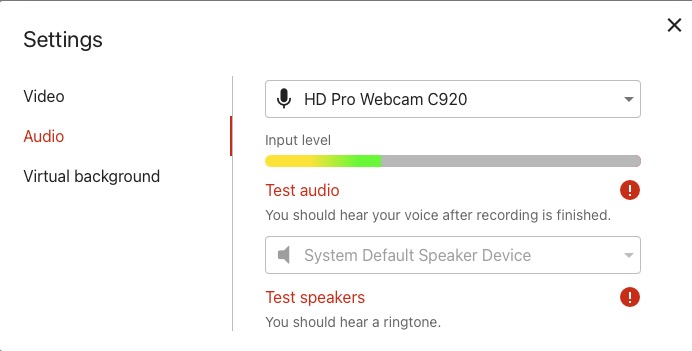
You can select or change the speaker (or headphones) and your microphone.
If a microphone is connected, its functionality can be checked directly by looking at the level indicator (briefly speak into your microphone).
Webcam / Video
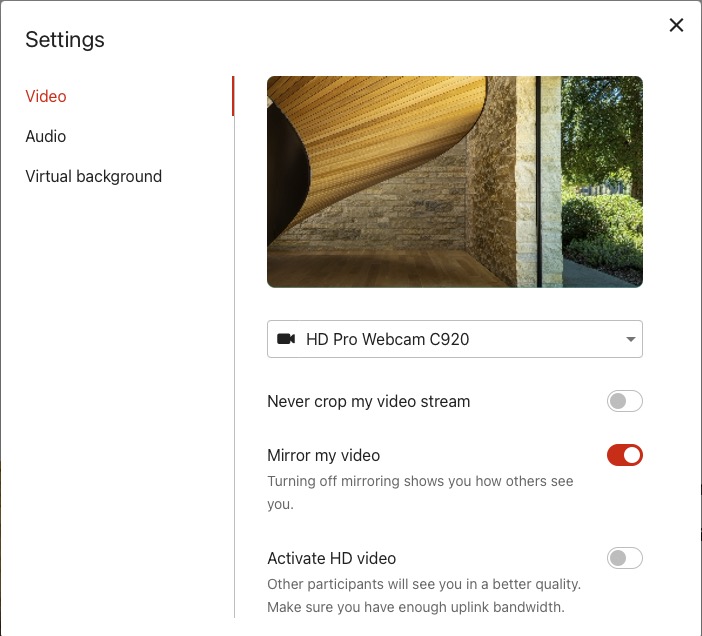
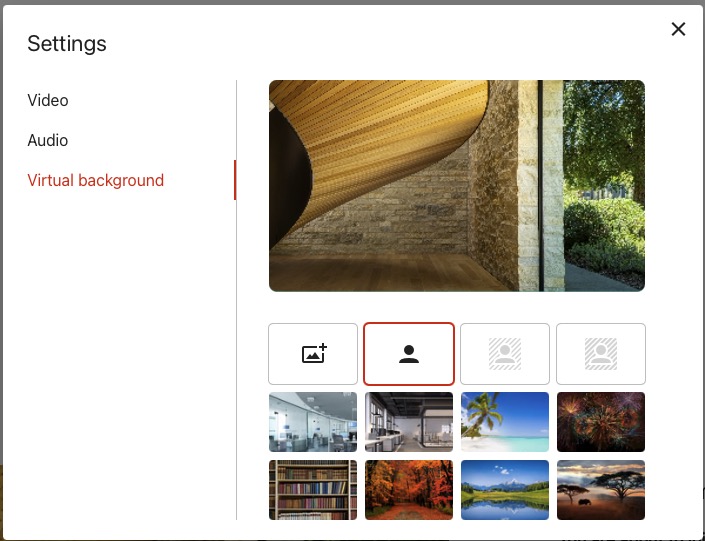
If the “Virtual background” tab is available (activated in the organizer’s account), you can view a transmission of your video signal including the virtual background you selected:
Moderators:
When entering YuLinc, you can check, adjust if necessary, and test your settings via the start window:
Screenshot
If the video is transmitted and you see a level response from your microphone (please speak briefly to test), the webcam and microphone are working (adjust the level if needed).
Under Audio Test you can select and test both your microphone and your speakers/headset (audio output devices) directly:
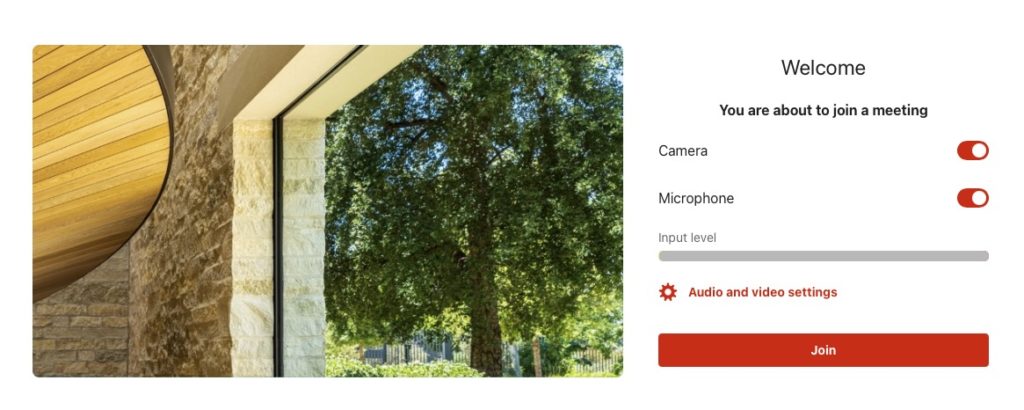
Device selection (microphone and output devices) is done by clicking the selection arrow.
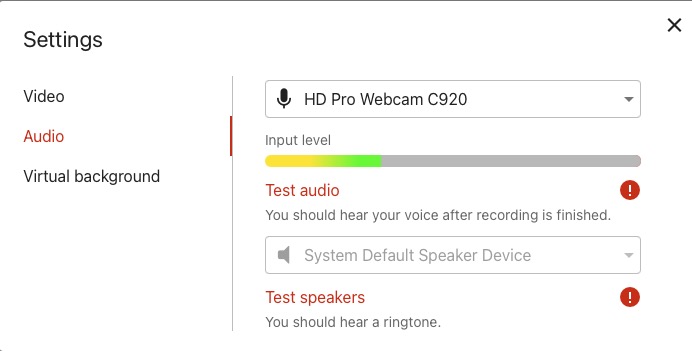
If a microphone is connected, the volume is shown directly via a level meter. When you click Microphone Test, your microphone is recorded for 5 seconds and then played back immediately. You will hear the recording through your selected output device.
For Audio Output Device Test, a sequence of tones is played which you should hear immediately.
Summary of points that can cause problems:
I can’t be heard in YuLinc (my microphone & webcam don’t work)
Another application (e.g., MS Teams, Zoom, Unity phone systems) may be blocking access to your microphone. Please close the respective software.
Even if you have supposedly closed MS Teams, the program may still be running and continues to block access to your audio and video devices.
You will usually find the application in your taskbar. Right-click the application and quit it.
My connection is not optimal
If possible, use a LAN connection. With Wi-Fi there may be occasional signal dropouts that don’t show up during normal browsing, but can affect the virtual room.
I work via a Citrix environment
Use YuLinc outside of Citrix. Please contact your IT department in good time. If they have questions, they can contact our support directly:
06172 4526033 / support@netucate.com
A tip when choosing your browser:
If possible, use Google Chrome. Browsers such as Firefox, Edge Chromium, Opera, and Safari can of course also be used. Safari has a few limitations: the virtual background cannot be used, and when sharing, only the entire screen can be shared.
Browsers with many plugins can cause problems; use a browser without such plugins.
If there are problems, deleting the cache and cookies can also help.
Firewall- & Netzwerkeinstellungen
Empfehlung (bevorzugte Konfiguration):
Wenn Ihre Firewall Wildcard-Domains unterstützt, empfehlen wir die Freigabe von:
Dadurch werden automatisch alle benötigten Web-, Signalisierungs-, Medien- und TURN/STUN-Server freigegeben. Künftige Infrastruktur-Erweiterungen erfordern dann in der Regel keine Anpassungen Ihrer Firewall.
Vollständige Infrastruktur
Eine vollständige Übersicht aller Serverstandorte, Cloud-Scaling-IP-Bereiche sowie der Netzwerk- und Firewall-Konfiguration finden Sie in der YuLinc Infrastruktur-Dokumentation.
Das würde ich für eine technische Support-Seite so gestalten. Es ist kompakt, übersichtlich und Administratoren können die IPs direkt kopieren.
Webserver
Protokoll: HTTPS (TCP 443)
IP-Adressen:213.227.150.240, 85.17.5.14, 89.149.193.202
Signalisierungsserver
Protokoll: Secure WebSocket (WSS, TCP 443)
IP-Adressen:85.17.5.15, 85.17.5.16, 212.32.246.198
Medienserver
Erforderliche Ports
- HTTPS (TCP 443)
- RTP (TCP/UDP 20000–40000)
IP-Adressen:85.17.5.17, 85.17.5.18, 85.17.5.20, 85.17.5.23, 85.17.77.86, 5.79.102.213, 95.211.76.146, 95.211.76.178, 95.211.76.180, 95.211.76.182, 95.211.76.184, 212.32.246.199, 89.149.193.214, 89.149.193.215
Hinweis: Bei aktiviertem Cloud-Scaling können zusätzlich Medienserver aus den in der Infrastruktur-Dokumentation beschriebenen EU-IP-Bereichen verwendet werden.
TURN-/STUN-Server
Erforderliche Ports
- UDP 3478 / 443
- TCP/TLS 5349 / 443
Server:turn.netucate.net, turn.aquila-eu.wbcnf.net, turn.delphinus-eu.wbcnf.net
IP-Adressen:95.168.161.3, 178.162.159.4
Vollständige Infrastruktur
Eine vollständige Übersicht aller Serverstandorte, Cloud-Scaling-IP-Bereiche sowie der Netzwerk- und Firewall-Konfiguration finden Sie in unserer YuLinc Infrastruktur-Dokumentation.